
Step-by-step setup · Updated November 2, 2026
Set up GreetChat, saved answers and your inbox
Connect the right website, help visitors with answers you write, and keep a clear path to a person. This walkthrough uses real screenshots of GreetMode’s public browser demo with sample content; your website needs its own installation and active GreetChat access.
Explore GreetChat features and screenshots or create a free GreetMode account.
1. Create an account and confirm Chat access
Create a free GreetMode account or sign in. Account creation does not require a purchase, but GreetChat is a paid tool. Check current pricing and availability and confirm active access for your account before using it on your website. Free tools alone do not activate Chat.
2. Select the website you want to connect
Open Your sites. Add or select the website in Website settings, then choose GreetChat under Manage products. Keep that website selected when copying code, saving answers and testing the inbox. Configure its display details and hours in the product workspace.
3. Install the code for that website
Open Install GreetChat and copy the full snippet. It already contains your website ID. Use the platform guide below to put the code in your published site, not only the editor preview. Install it once on each page where chat should appear.
<script src="https://www.greetmode.com/widget.js"
  data-site="your-site-id"></script>
The example contains a placeholder. Copy your own code from the workspace. Platform plans and script permissions vary; editing a source-based website may require a new deployment.
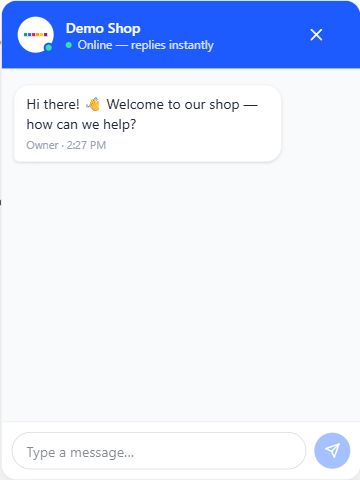
4. Write your clickable questions and keyword replies
In the selected GreetChat workspace, open Settings → Automated questions & replies. Choose Add question, enter the visitor-facing question and the exact Automatic answer you want to send. You can add up to 12 questions.
Example to adapt to your business
- Question
- Where can I find your opening hours?
- Automatic answer
- Our current hours are on our Contact page. Please check that page for holiday changes.
- Optional keywords
- hours, opening hours
Leave keywords blank for clickable questions only. With keywords, a matching typed message can trigger the saved answer. The first matching answer is used, so avoid broad, overlapping words across different questions. Select Save automated replies, then reload the visitor page.
These replies use the text you save; they do not generate an answer with AI. Visitors can choose Talk to a person to stop automated answers for that conversation and request a human reply. Someone still needs to respond.
5. Test both sides of the conversation
- Open the published page as a visitor. Confirm one bubble appears and the conversation opens fully.
- Select a saved question, then type a message containing one of your keywords. Check the returned wording.
- Choose Talk to a person and send a test message.
- Open the owner inbox and select the same website’s live thread. Reply and confirm the visitor receives it.
- Repeat on your phone. Check closed-hours behavior and offline message capture as well as the online view.
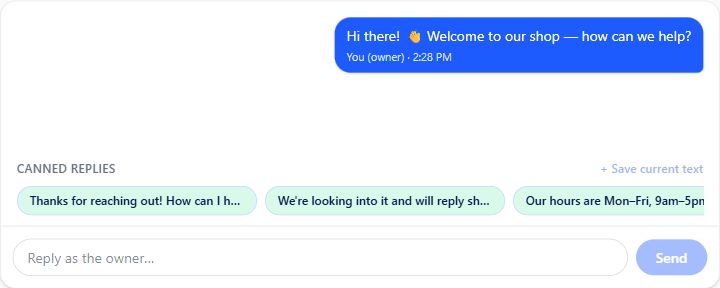
The public demo shares sample messages between the homepage widget and demo inbox in the same browser. Your installed website instead uses its website ID and live thread. Check that context before deciding a message is missing.
6. Make follow-up part of your routine
Review unread conversations and test your notification choices. The online/closed display follows configured hours, not a guarantee that an agent is watching. The current hours calculation uses the visitor device’s local time; check the displayed behavior on the devices your customers use.
Keep answers current when your hours, delivery details or policies change. If a reply does not trigger, check the selected website, saved keywords and whether that visitor already requested a person.
Choose your website platform
Check your platform’s script permissions and publishing steps before installing. The GoDaddy guide distinguishes WordPress/HTML hosting from the unverified Websites + Marketing builder path.
Continue with your website
Open Your sites, review GreetChat features, or read how to follow up after an offline message. Tell us your platform and the step that failed if you need installation help.