
Step-by-step setup · Updated November 2, 2026
Set up GreetTest and read your experiment results
Plan a client-side headline test, check traffic readiness, install with consent and interpret results. Actual wizard and installation-test screenshots show the workflow without claiming a business winner.
Explore GreetTest features and screenshots or create a free GreetMode account.
1. Choose one page and two headlines
Sign in, choose your website under Your sites, and select GreetTest in Manage products when your account has access. Live tracking is currently limited to approved pilot websites. Free signup and a saved idea do not activate tracking or paid access; check current availability in Billing.
Open Settings and choose New experiment. The five guided steps are Your page, Two headlines, Your goal, Traffic check and Review. Enter the exact HTTPS page URL, copy its current headline and write one alternative. Change one idea at a time so the result is useful.
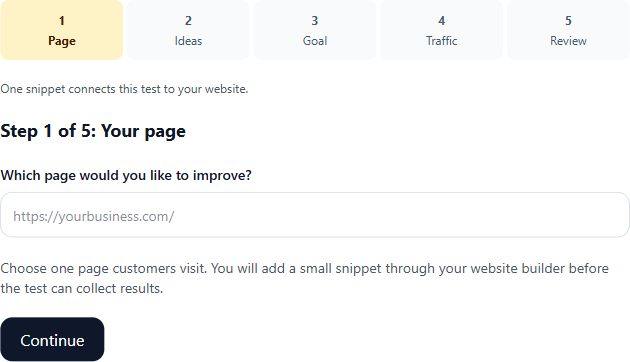
GreetTest finds one plain-text heading with the exact current headline. Repeated text or specially formatted headings may need a unique element ID and help from your website builder. This is client-side headline testing, not a server-side experimentation system.
Choose Click a button or link for a click goal, using its exact text or a unique element ID. A click measures a click, not a completed lead or sale. For Complete a form, your application must call window.GreetTest?.conversion() only after it confirms a successful submission. Do not call it on the submit-button click or after an error.
2. Check whether the page has enough traffic
Use visitors to this specific page, not your whole website. Enter monthly visitors, the share expected to participate after consent and blockers, your current conversion rate, and the relative improvement you want to detect. Mark an assumed rate as an estimate rather than measured data.
Traffic check estimates eligible visitors, enrollment time and the minimum per version. If you do not know the traffic, save your idea and find the page numbers in analytics first. If the estimate exceeds the 28-day enrollment window or current limits, choose a busier suitable page or a more noticeable change. Do not inflate the expected improvement just to pass the check.
Review and save the plan. Feasible is an estimate, not a promise of a winner. Tests with too little evidence can end without a clear result.
3. Verify ownership and install with consent
In Results and installation, follow Verify your website to place the verification file on the exact website origin. Keep it available while the test runs. Pilot start controls also require saved changes, an eligible traffic plan and approved tracking access.
For an approved started pilot, open Install on your test page and copy its own snippet. Load the script before your consent manager so it can receive consent events; it makes no tracking requests and stores no visitor ID until permission is granted.
With GreetConsent, add data-greettest="true" to the existing consent script tag, rather than adding a second banner. This provides a separate GreetTest choice and asks returning visitors for fresh consent. With another consent manager, connect its permission and withdrawal events to GreetTest’s grant and decline methods. Global Privacy Control and Do Not Track prevent enrollment.
Check the installed page on desktop and phone. Grant the test choice, confirm the headline renders, complete the intended goal and refresh results. For a form-success goal, confirm validation errors do not count, a successful submission does count, and repeated events from the same visitor are not counted twice. Do not change the live plan midway; create a new draft for different copy or goals.
4. Separate installation checks from a business result
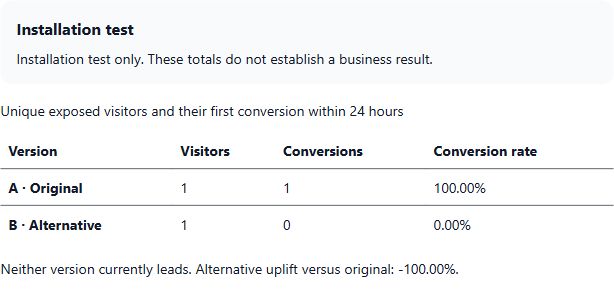
Refresh Results and installation to see exposed visitors, conversions, conversion rates, enrollment end and final-report time. Counts describe consented browsers and their first conversion within 24 hours, not every visitor, a verified person or revenue.
A leading version or positive uplift during collection is not a final winner. Let the planned enrollment and conversion window finish, then read the status and reason. The final report may find a winner, insufficient evidence, or a traffic problem. Do not declare a winner from a handful of conversions or stop early just because one version looks better.
Installation tests remain explicitly labeled as tests. A completed winning run can serve its selected version; confirm the displayed state before relying on it. Estimates and statistical intervals do not guarantee future performance.
Explore GreetTest features and screenshots →