
Step-by-step setup · Updated November 2, 2026
Set up GreetWidgets designs, connections and installation
Explore actual widget sample screens, prepare a design and understand provider access and installation. Fictional sample content, connected previews and approved test embeds are clearly distinguished.
Explore GreetWidgets features and screenshots or create a free GreetMode account.
1. Try the actual sample interfaces
On the product page, switch between Google reviews and Instagram and try Dark palette. These are working layout previews with fictional text and illustrative graphics. They do not fetch Google reviews, load Instagram media or authorize an account.
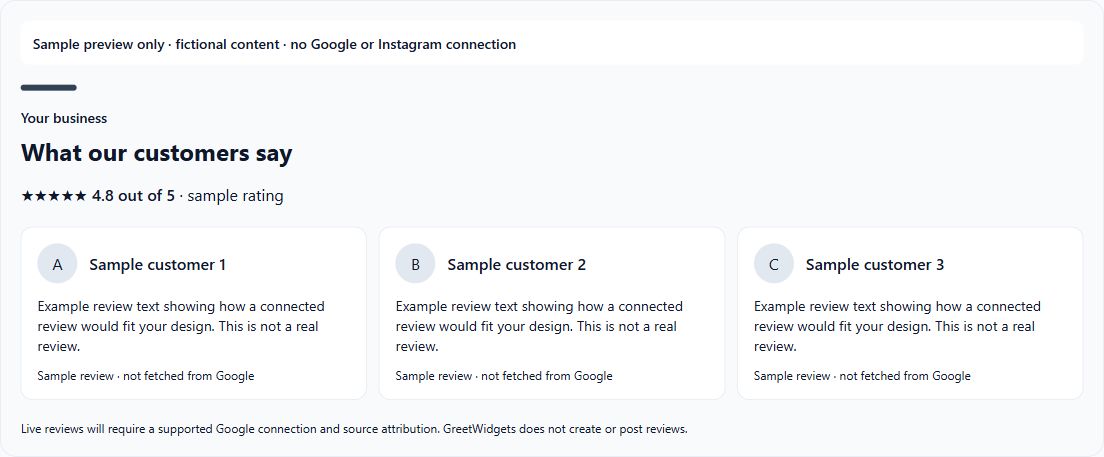
GreetWidgets is planned at $4.99/month. Public publishing and Google connections remain in preparation, while assigned Instagram tests are limited to approved accounts and websites. Check current availability and your access in Billing before expecting a live feed. Free signup does not activate this paid product.
2. Prepare the design in your website workspace
When your account has access, open Your sites, choose the correct website and select GreetWidgets in Manage products. Create or open a widget draft, choose its source, and edit the headline, business text, layout, light/dark theme, accent color and columns.
Instagram item-count choices are 3, 6, 9 or 12, with 6 as the default. The Load more preview option can show additional available posts up to the preview limit of 48; it does not guarantee that many displayable posts exist. Check your chosen layout on desktop and phone.
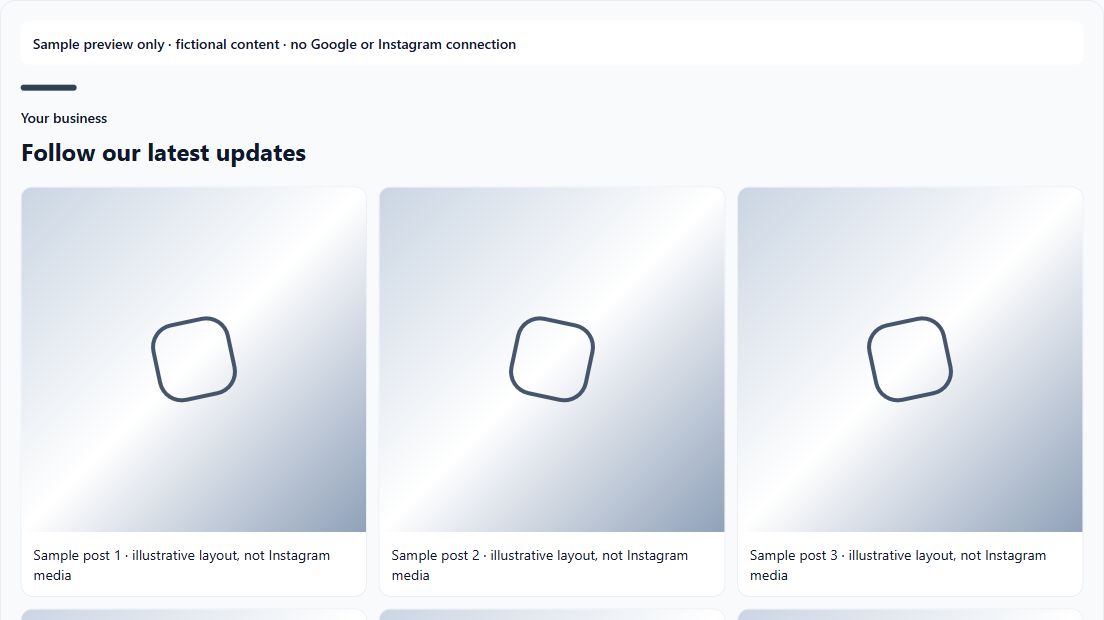
Save the design and its exact HTTPS website origin, without a page path. The www and non-www origins are different. A saved draft or sample preview is not a published live widget.
3. Separate provider authorization from a layout preview
For an eligible Instagram pilot, use the workspace connection flow with an account you are authorized to manage. Do not paste account passwords or access tokens into an embed. The connection and live-media preview are separate from sample content.
Where available, Load connected Instagram posts fetches real posts after you choose to load them. Check the account name, images, captions and source links. An empty feed can mean there are no displayable posts; it should not be filled with sample content presented as real activity.
Google review sample layouts are not a working Google connection. Follow the separate provider setup and launch-status page for its current requirements. GreetReviews is the free tool for requesting Google reviews; GreetWidgets is the display product.
Provider setup and current launch status →Set up free Google review requests →4. Install only when the widget has activation access
In Install your widget, confirm the saved website matches the assigned test domain or available publishing configuration. Save unsaved design changes before copying the widget-specific installation code. An assigned test has its own status and expiry; it is separate from a public launch.
Place the code once in a supported Custom HTML or Embed block where the feed should appear, or in the body of your HTML/PHP page. Website-builder plans must allow the required code. Never use another website’s widget ID or add secret keys to the page.
For an approved test, activate only when permitted by its saved domain, access and expiry. Check the installed public page on desktop and phone, source links, empty/error states and Load more if enabled. Confirm privacy and consent behavior appropriate for the real external media. A successful private connected preview does not prove the public installation works.
If the status is Draft, Test paused or Test expired, resolve that status rather than treating copied code as a working feed. Do not promise public publishing before it is available.
Explore GreetWidgets features and screenshots →