
Step-by-step setup · Updated November 2, 2026
Set up GreetLanding campaign pages and lead forms
Choose a template, customize a form, preview the thank-you message and publish a saved campaign. Real public-preview screenshots explain the visitor experience and the lead follow-up workflow.
Explore GreetLanding features and screenshots or create a free GreetMode account.
1. Choose the campaign’s purpose
Try Lead generation, Event interest and Promotion on the product page. Public previews use sample content, stay in your browser and save no leads. They do not create a campaign or activate a subscription.
Try the actual GreetLanding templates →To create a campaign, sign in, open Your sites, choose your website and select GreetLanding in Manage products when you have access. Check current publishing availability and access in Billing. The planned $9.99/month product supports up to 10 campaigns per business; free signup alone does not activate publishing.
Enter an internal campaign name, choose a starting template and create the campaign. Edit its business name, headline, description, accent color, layout, image and meaningful image alternative, benefits and call to action. Keep the page focused on one offer and one next step. Public pages use GreetMode-hosted campaign links.
2. Ask only for the information you need
For a lead form, configure its heading and thank-you message. Name and email are collected; phone and message can be optional. Add up to four custom short-answer questions and mark required answers deliberately. Promotion pages can instead use an outbound call-to-action link.
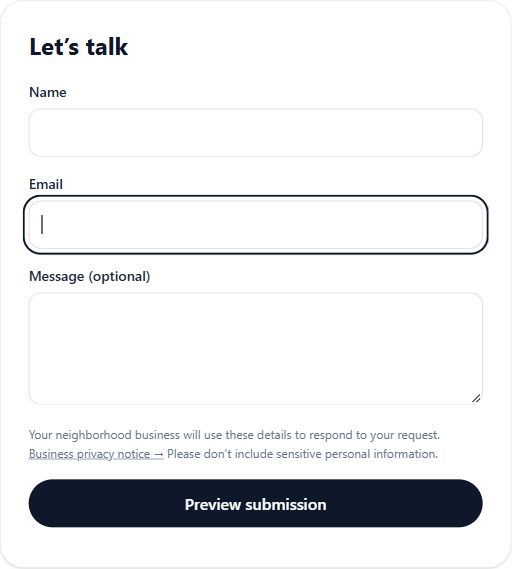
Provide your own HTTPS business privacy notice URL before publishing a lead form. Replace the demo privacy link with your business’s notice. Avoid requesting sensitive personal information. If you offer marketing opt-in, use appropriate wording; the visitor checkbox starts unchecked and is separate from making an inquiry.
Use the guided fields rather than custom HTML or scripts. File uploads and pasted analytics tags are not supported. No email or marketing messages are sent automatically after a submission.
3. Test a preview, save the draft, then publish
In the browser preview, check required fields and invalid email handling. Submit test details to confirm the thank-you text is clear. On the public template preview this stays local and saves no data; a published campaign submission creates a real lead.
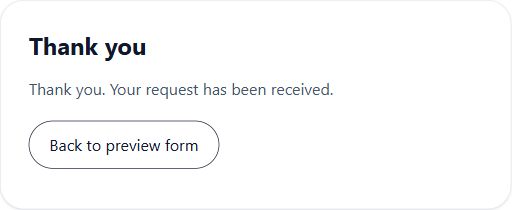
Save draft stores your edits without changing the published version. Preview the saved content, then publish when access permits. Copy the hosted campaign URL and open it in a private window to check the public page. Check it on a phone and with keyboard navigation before promoting it.
When you edit an already published campaign, save and publish again to make the changes live. Review the public page after publishing. Unpublish when an offer ends; draft changes and publication are separate actions.
4. Follow up and interpret campaign activity
Open the campaign’s lead dashboard to review inquiries, answers, marketing opt-in and UTM campaign tags. Track follow-up with New, Contacted, Qualified and Closed statuses. Export a CSV when you need to work with your leads elsewhere, and keep that download private.
Add consistent UTM source, medium and campaign parameters to the hosted link you use in an ad or promotion. Review page requests, outbound clicks and submissions in context: page requests are not unique people, a click is not a sale, and a lead is not verified revenue.
Before launch, submit a clearly marked test inquiry to your published campaign and confirm it appears in your own lead dashboard. That is a separate check from the browser-only preview shown here. Arrange your follow-up process because GreetLanding does not send automatic email or marketing messages.
Explore GreetLanding features, templates and screenshots →